
New WordPress website is being built and will be published soon
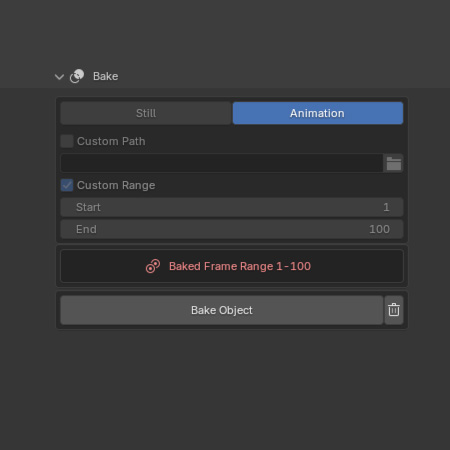
The Bake Object feature stores an object’s geometry to avoid recalculation on every frame.
Still Mode: bake at a single frame for static objects.
Animation Mode: bake across a frame range for animated objects.
This improves playback and preview performance. Baked objects ignore parameter changes until the bake is cleared. Blender file must be saved before baking.
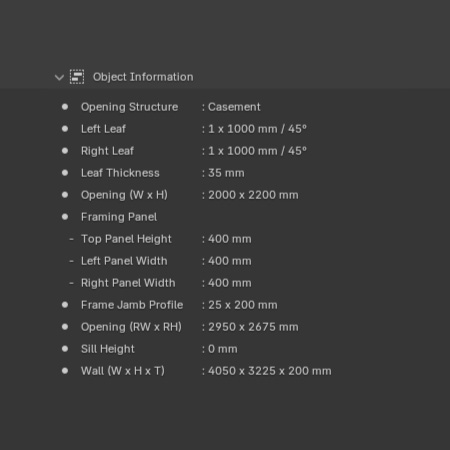
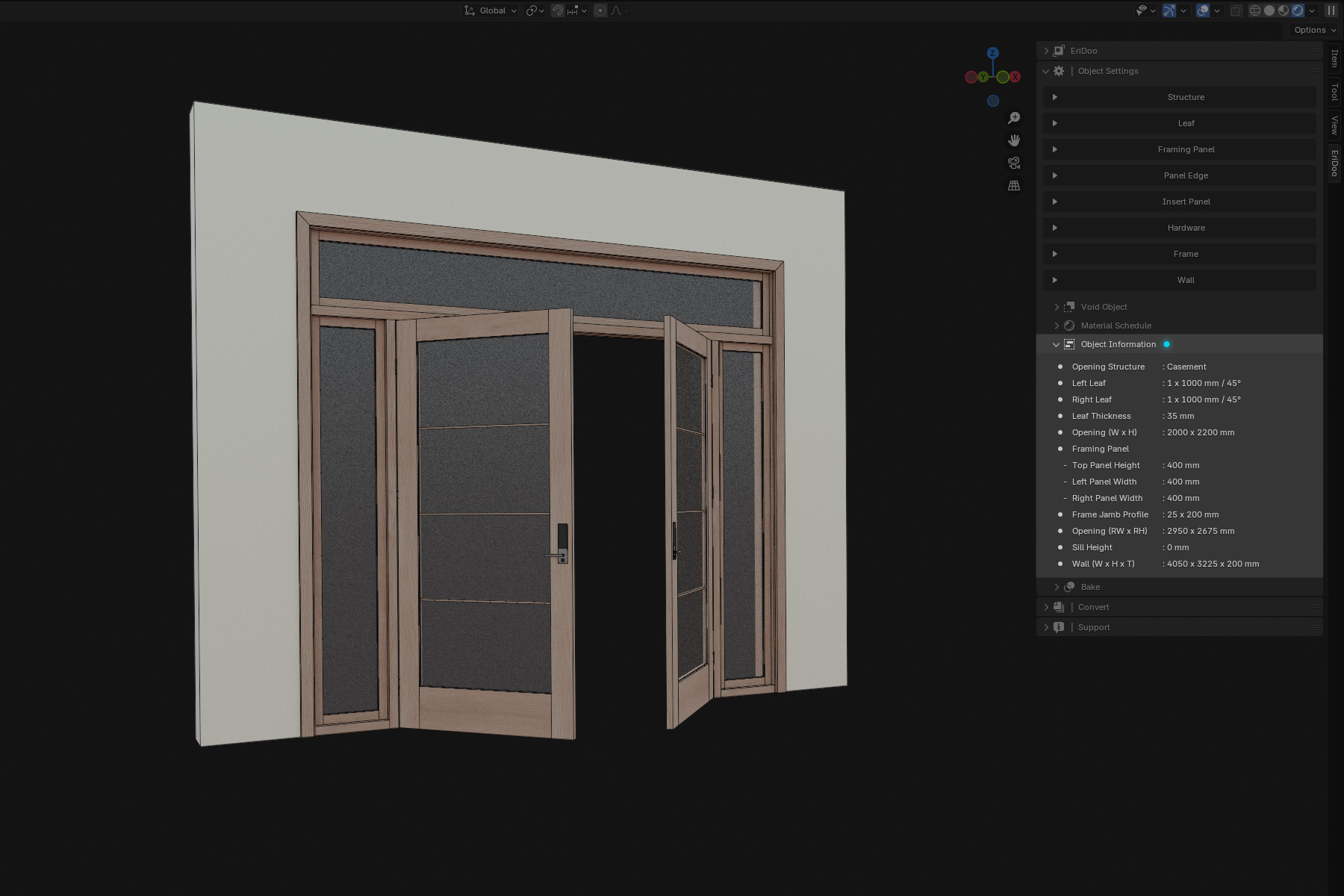
The Object Information panel shows essential data of the object, including opening structure, leaf size, opening rate, overall size, framing panel details, rough opening size, sill height, wall dimensions, and more. It provides a quick way to review and verify key information without going through individual settings.
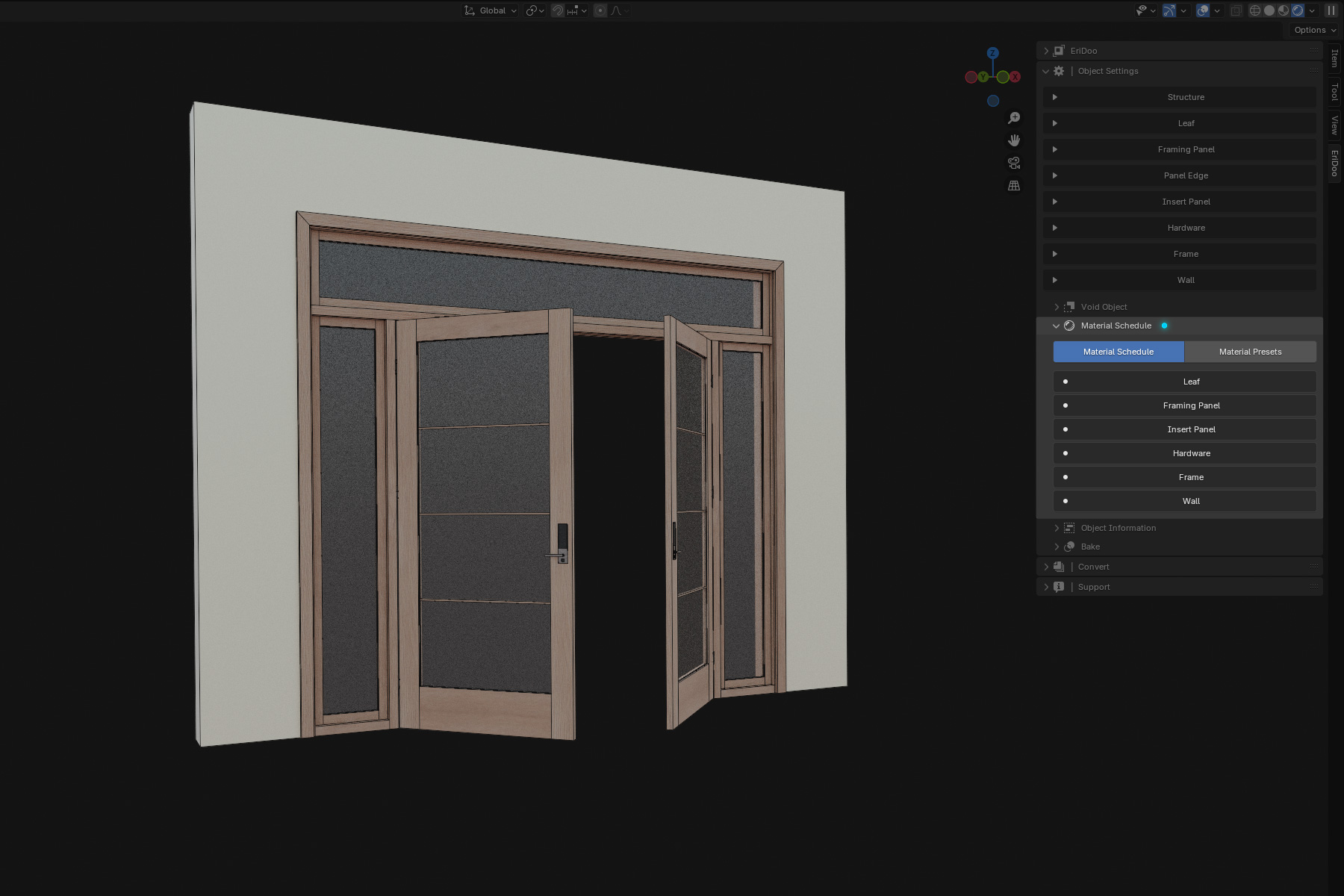
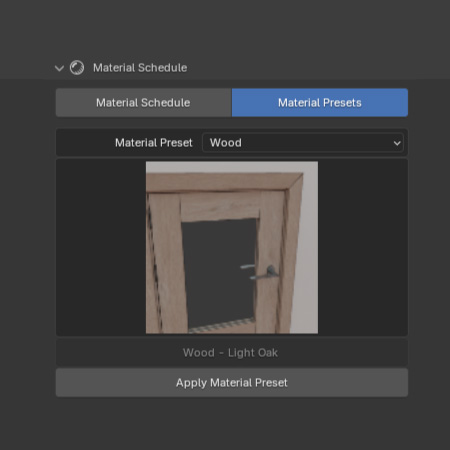
Material Presets provide a quick way to apply predefined material configurations across your object. This ensures consistent visual styles and reduces the need to manually adjust surface properties each time.
The Object Void settings allow you to generate a void object for cutting through existing mesh geometry as needed. The void automatically updates whenever the opening object changes, ensuring accurate alignment.
You can also control its visibility in the viewport or enable and disable the void object as required, giving you full flexibility over its use in the design process.
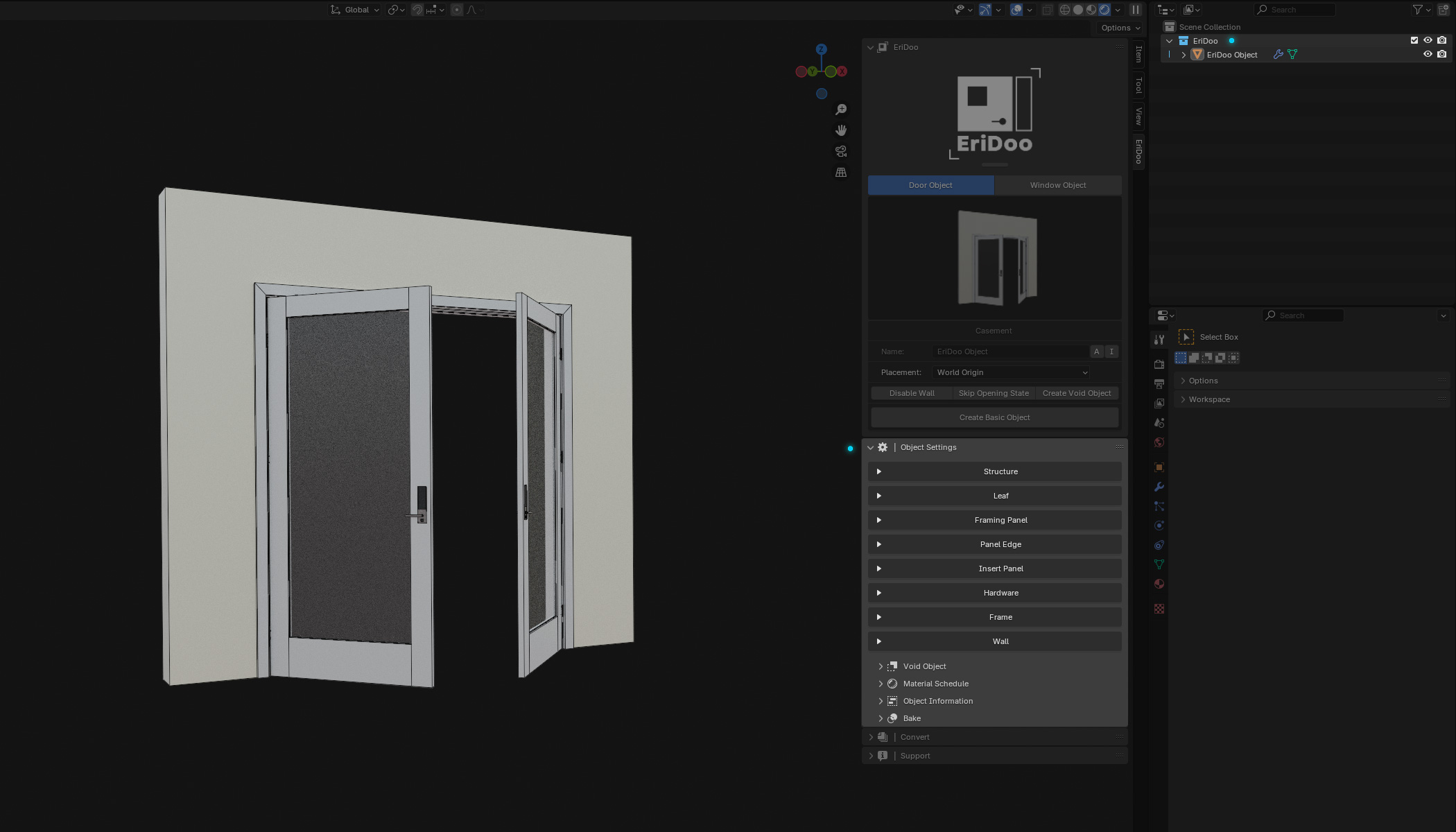
After creating an object, a dedicated Object Settings Panel will appear, organized into smaller setting groups for easier customization. This panel is only visible when the active object is recognized as an EriDoo Object.
Every generated object automatically receives a predefined name and is placed inside the EriDoo collection for consistent organization.
Structure Settings
The Structure settings allow you to define the core characteristics of your opening object, including the type of structure, leaf height, leaf thickness, material, offset position, … . These controls establish the overall framework on which the rest of the design is built.
Structure Presets
Instead of adjusting parameters individually, Structure presets offer ready-made setups tailored to each structure type. This allows you to move quickly between different design bases and adapt them to your needs.
Leaf Settings
The Leaf settings give you detailed control over the configuration of door or window leaves. You can adjust the quantity, structural type, individual width, opening rate, and insert panel setback, making it possible to fine-tune proportions and motion with precision.
Leaf Presets
Leaf presets provide a direct way to load predefined arrangements and structures. By applying them, you can establish consistent layouts in just a few clicks, especially useful when working with multiple similar objects.
Framing Panel Settings
Framing Panel settings make it possible to add top, bottom, left, and right panels around the opening. Each panel can be assigned its own structure, insert panel, and corner joint type, giving you full control over how the frame integrates with the object.
Framing Panel Presets
Framing Panel presets allow you to apply predefined frame setups to one or multiple sides at once. They offer a fast way to test out different framing styles without rebuilding configurations from scratch.
The Panel Edge settings allow you to control how panels connect at their edges, ensuring a unified appearance across both leaves and framing panels. You can choose between Solid Block, Miter Joint, or Butt Joint, depending on the visual style and construction logic you want to achieve.
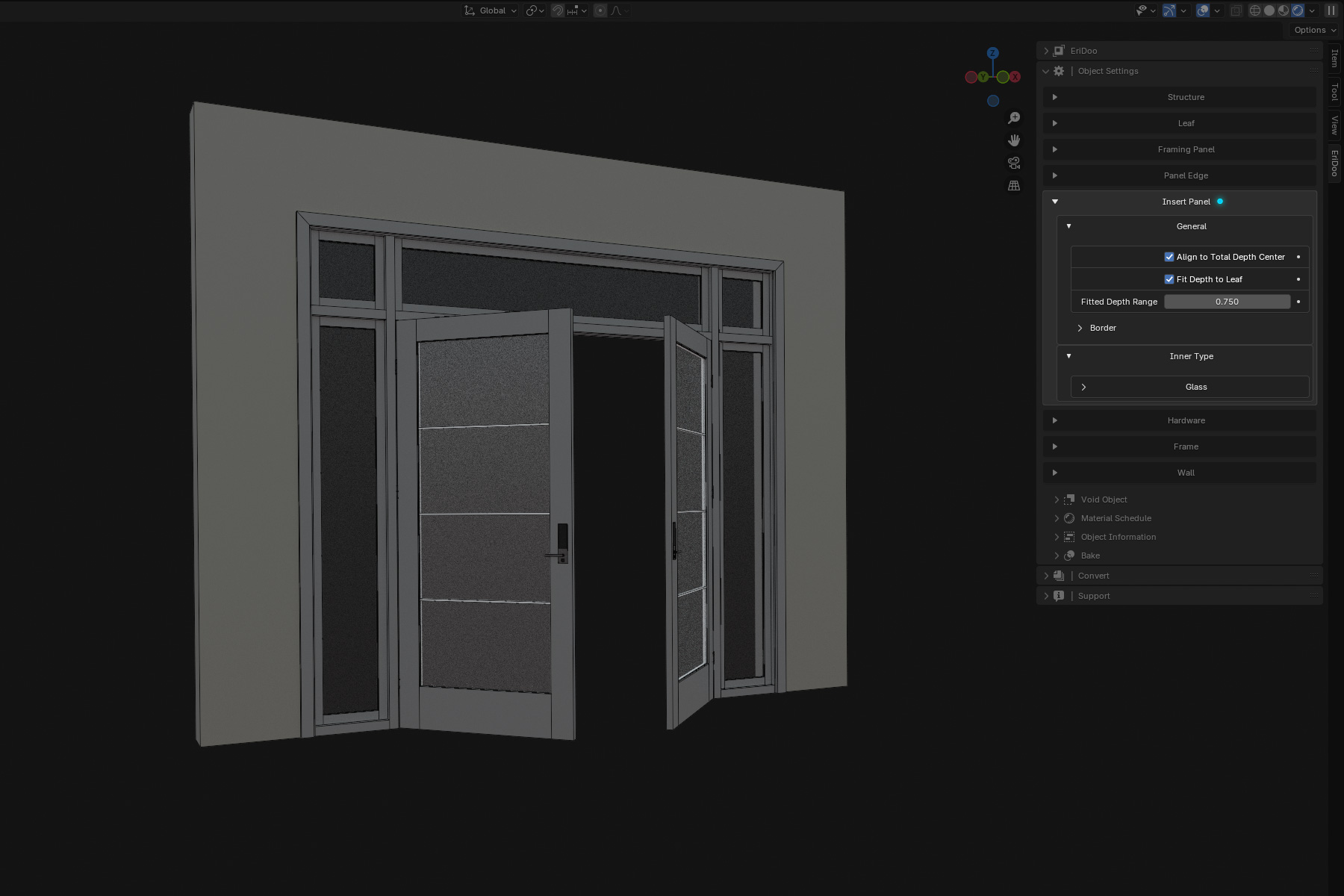
The Insert Panel settings provide detailed control over the internal design of panels, whether applied to leaves or framing panels. Depending on the chosen insert type – Flat, Bevel, Beadboard, Glass, Mullion Grid, or Louver – you can refine the panel’s look and construction to align with your design intent. These options give you the flexibility to create anything from minimal flat surfaces to intricate, highly detailed panel compositions.
The Hardware settings allow you to customize functional components of the opening object, including handle type, stopper, hinge, and track. Each option adapts to the selected opening structure.
The Frame settings give you full control over the detailed components of the frame, including jamb, sub-jamb, sill, stool, stop, casing, corner joints, and threshold. These options allow precise customization of how the frame is built and finished, ensuring both structural integrity and visual refinement.
Start by generating a new opening object (door, window, or framed opening).
EriDoo Addon
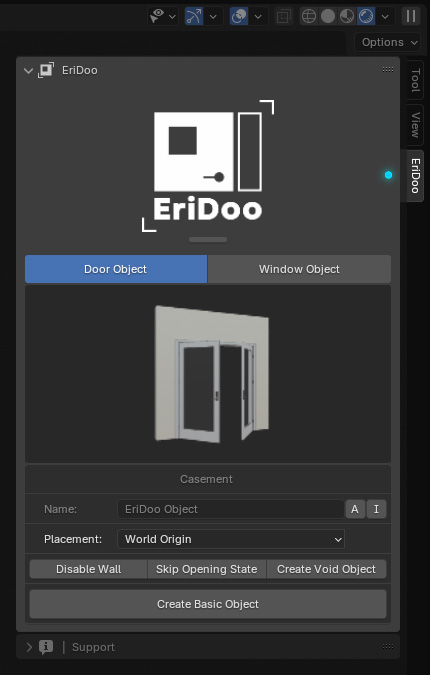
EriDoo Panel
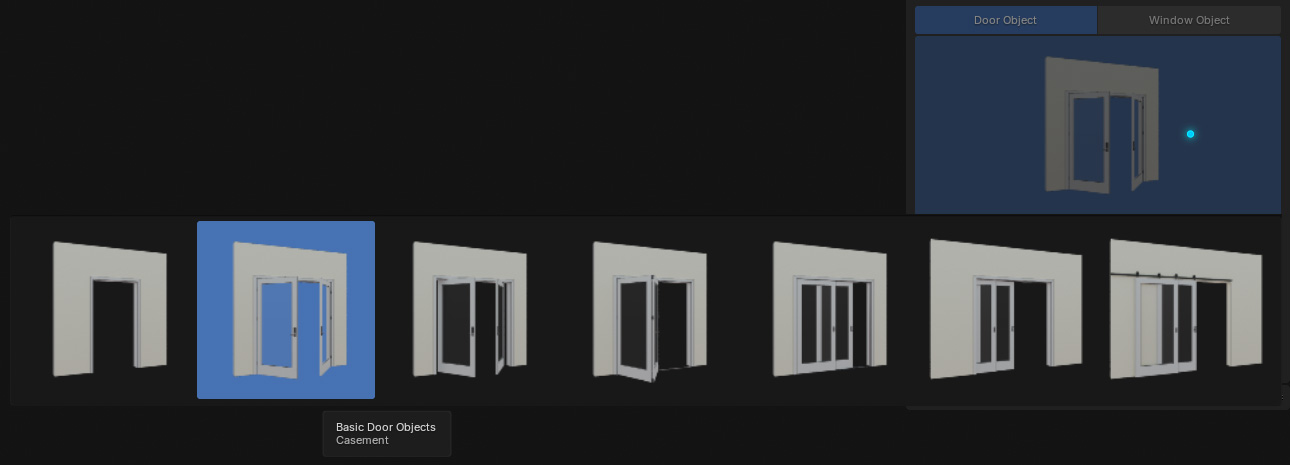
Door Object Tab
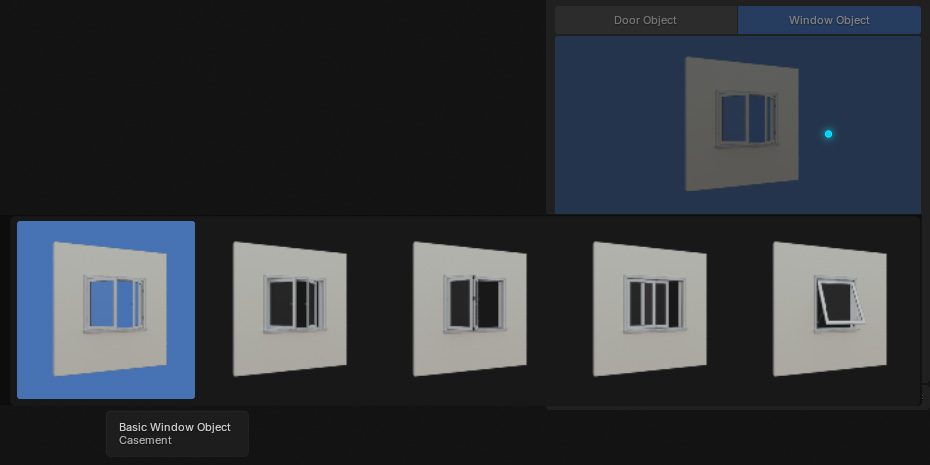
Window Object Tab
Object Name
Object Placement
Disable wall when
creating the object
Skip opening state when
creating the object
Included the void when
creating the object
Click on the button to
create the basic object
Create a basic door object with adaptive naming, including the wall and opening state
Create a basic door object with adaptive naming, including opening state and void, but without wall
Create a basic window object with adaptive naming, including the wall and opening state
Create a basic window object with adaptive naming, including opening state and void, but without wall
This documentation consolidates everything you need to understand and work effectively with EriDoo. It introduces the addon’s purpose, guides you through the initial setup, and offers a complete reference to all interface panels and parameters used in creating architectural opening objects.
EriDoo is a Blender add-on created by Architect Eric Tin Nguyen, Founder of Eric Architect.
It was developed with the purpose of helping architects, designers, and 3D artists quickly create and customize architectural openings — from simple frames to fully detailed door and window systems — directly inside Blender.
The goal of EriDoo is to make the process of building precise, parametric openings faster, more intuitive, and more accurate, while still allowing flexibility through presets and customization.
With a user-friendly and flexible interface, EriDoo allows users to easily access and apply all the supported features.
Create a wide range of architectural openings, including:
• Framed Opening
• Casement
• Pivot
• Folding
• Bypass Sliding
• Pocket Sliding
• Surface-Mounted Sliding
• Awning
Work seamlessly with both doors and windows, allowing flexible control over leaf numbers, dimensions, and opening mechanisms tailored to each structure type.
Design leaf structures as flush or with insert panels, and choose from a variety of insert types:
• Flat
• Bevel
• Beadboard
• Glass
• Mullion Grid
• Louver.
Add framing panels on all sides – top, bottom, left, and right – with fully customizable panel structures and insert panel types.
Select appropriate hardware components including handles, tracks, and thresholds, with options depending on the chosen structure type.
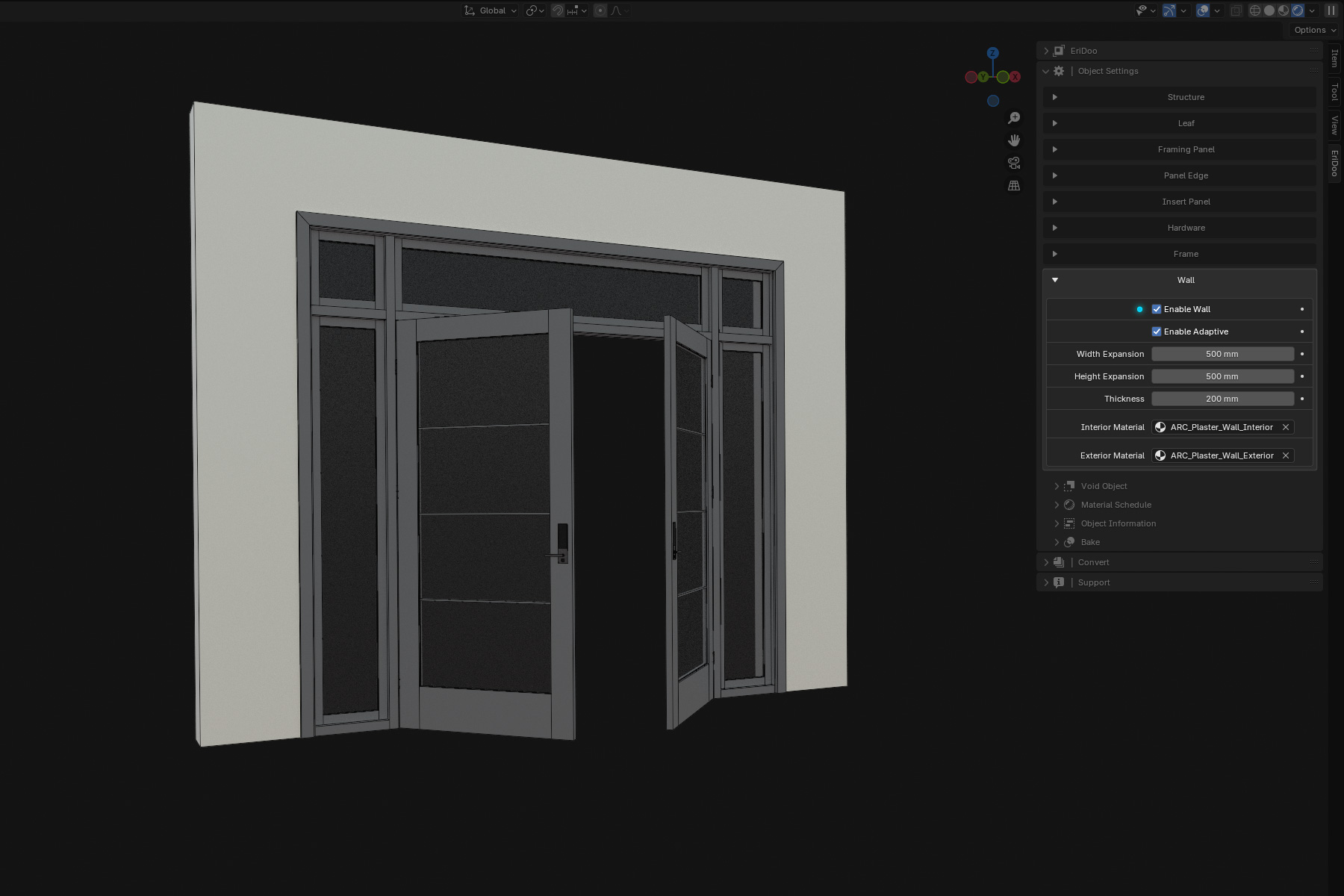
Automatically generate void objects to cut existing walls, or create custom wall elements directly linked to the opening object.
Speed up modeling with ready-to-use presets for structures, leaf designs, framing panels, and materials.
Produce models instantly usable for visualization, presentation, and rendering workflows.
While EriDoo already supports many opening types, it is still at version 1.0.0 and some features are not yet available:
These features may be considered for future versions.
EriDoo provides an intuitive and user-friendly interface that makes it easy to create and customize architectural openings.
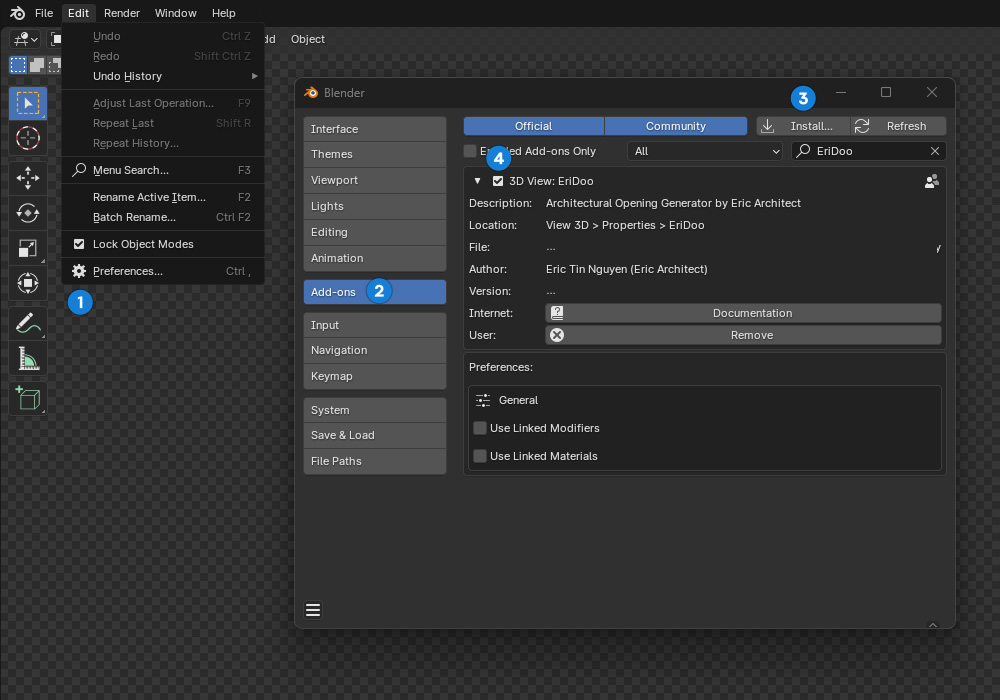
To open EriDoo, go to the side panel in the 3D Viewport and select the EriDoo tab.